Install BepInEx 5 (x64)
BepInEx is the foundation both mods stand on. It takes about five minutes: one download, one extract, one game launch. When you're done, your game folder will look exactly like the screenshots below.
What BepInEx actually is
BepInEx is the
standard open-source plugin loader for Unity games. It works through a trick called
doorstop: a tiny winhttp.dll file placed next to the game's EXE. Windows
loads that DLL automatically when the game starts, and it quietly boots the BepInEx framework,
which then loads any plugin DLLs it finds in BepInEx\plugins. Nothing in the
game's own files is ever modified — which is why removing one file returns the game to 100%
vanilla.
Songs of Conquest is a 64-bit Unity Mono game on Windows, which is exactly what BepInEx 5 (win_x64) targets. Both mods on this site are built against it.
You need BepInEx 5.x, win_x64. Three easy mistakes to avoid:
- Not x86 — the 32-bit build will not hook a 64-bit game. Nothing loads, no error shown.
- Not BepInEx 6 / “Bleeding Edge” — a different plugin API; these mods are BepInEx 5 plugins.
- Not the unix / macOS builds — this guide covers Windows.
-
Find your game folder the folder that contains
SongsOfConquest.exeSteam: Library → right-click Songs of Conquest → Manage → Browse local files. Steam opens the folder directly — this works no matter which drive your library lives on.
Typical locations:
— Steam, default library —
C:\Program Files (x86)\Steam\steamapps\common\SongsOfConquest\

— Steam, custom library on another drive (as used throughout this guide) —
F:\SteamLibrary\steamapps\common\SongsOfConquest\

— GOG, default —
C:\GOG Games\Songs of Conquest\
Confirm you're in the right place: you should see
SongsOfConquest.exe,UnityPlayer.dlland aSongsOfConquest_Datafolder. Keep this window open — every remaining step happens here. Close the game before continuing. -
Download BepInEx 5 (x64) one zip from the official GitHub releases
Open the official releases page: github.com/BepInEx/BepInEx/releases. Under the newest 5.4.x release (5.4.23.3 at the time of writing — any newer 5.4.x is fine), download:
BepInEx_win_x64_5.4.23.3.zip ← “win_x64” and a 5.4.x version number are the parts that matterIf the download is blockedBrowsers sometimes flag loader DLLs. BepInEx is open source and the official GitHub release is the trusted source — choose Keep. If Windows later marks the extracted files as “blocked”, step 3 has the fix.
-
Extract into the game folder contents go next to the EXE, not into a subfolder
Open the zip and drag everything inside it straight into the game folder from step 1 (or right-click the zip → Extract All… and point the target at the game folder). The zip's contents must land at the same level as
SongsOfConquest.exe:SongsOfConquest\ ├── BepInEx\ ← new ├── MonoBleedingEdge\ ├── SongsOfConquest_Data\ ├── .doorstop_version ← new ├── changelog.txt ← new ├── doorstop_config.ini ← new ├── SongsOfConquest.exe ├── UnityPlayer.dll └── winhttp.dll ← new — this is the doorstopThe #1 install mistakeIf you end up with
SongsOfConquest\BepInEx_win_x64_5.4.23.3\BepInEx\…you extracted the zip as a folder instead of merging its contents. The game will start completely vanilla with no error. Move the inner files up sowinhttp.dllsits directly besideSongsOfConquest.exe.If Windows extracted the files with a “blocked” flag (rare, but it silently prevents loading): right-click
winhttp.dll→ Properties → tick Unblock → OK.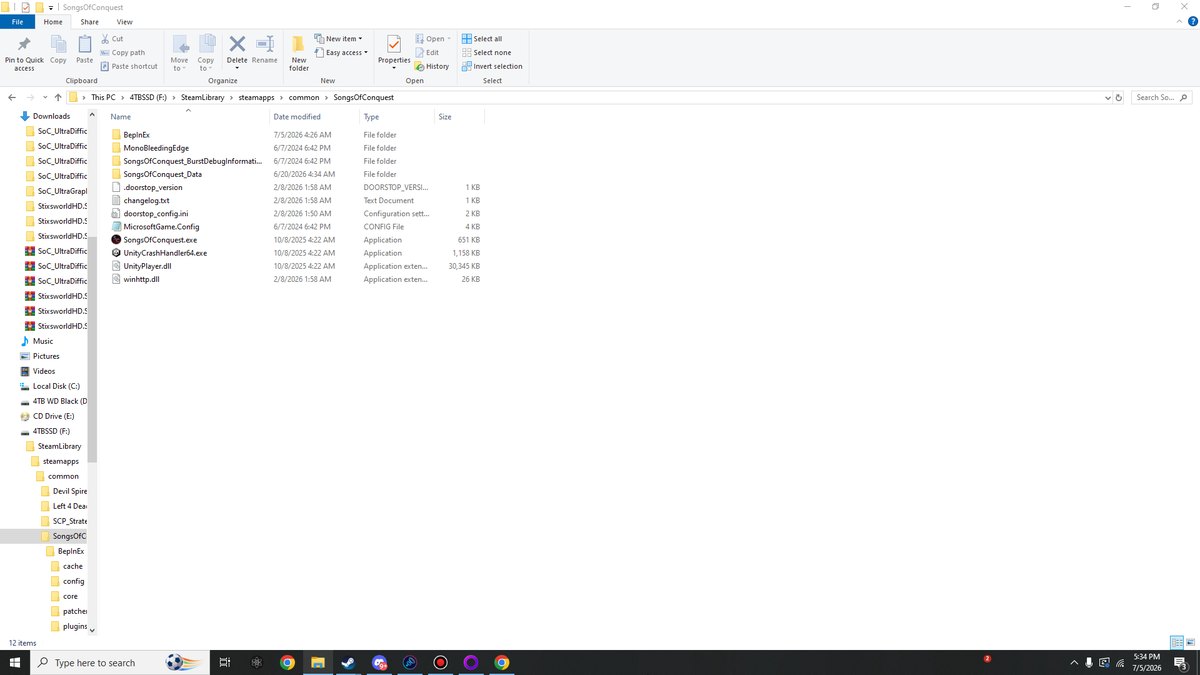
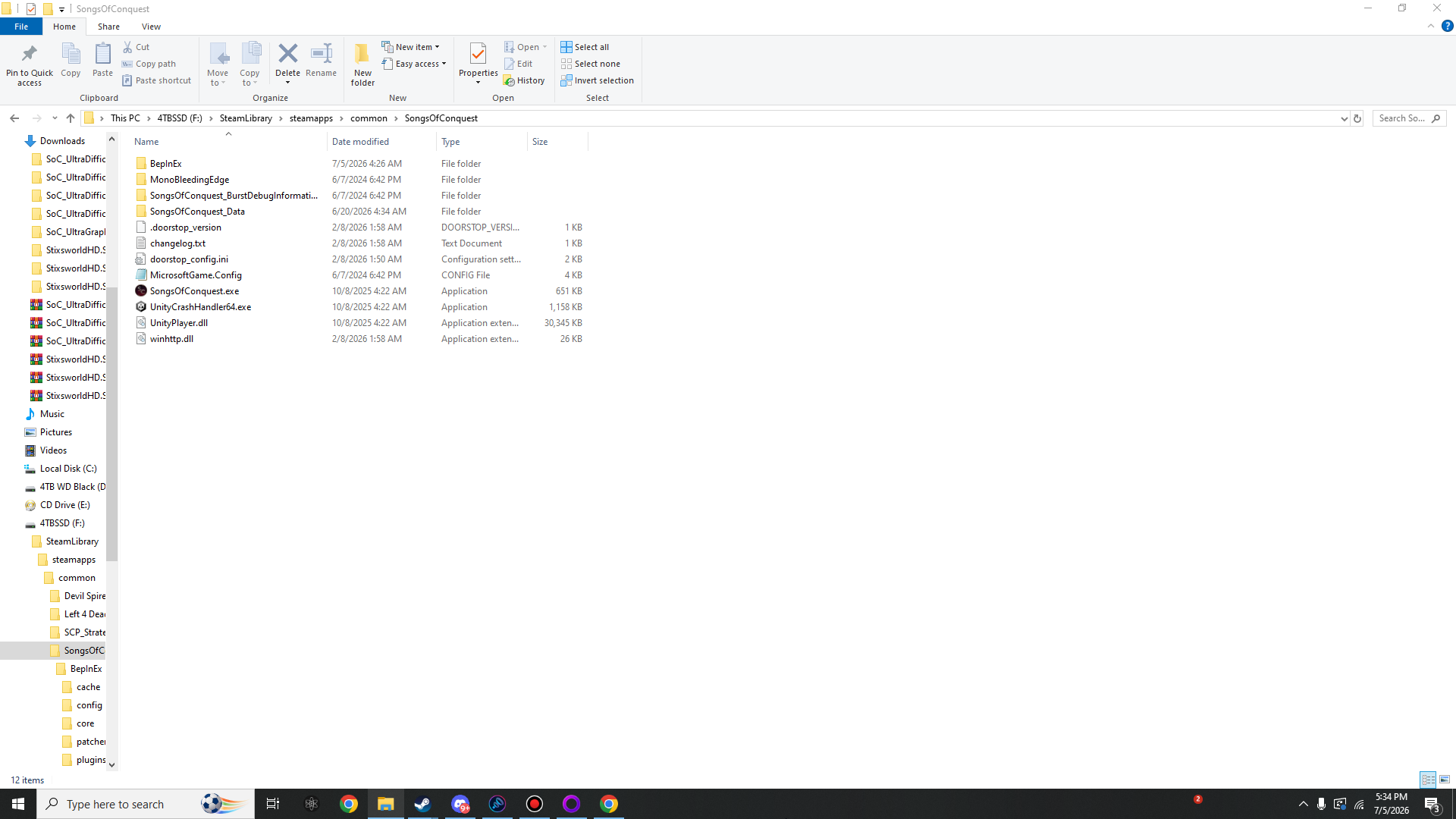
Checkpoint — your game folder after step 3. BepInEx\,winhttp.dll,doorstop_config.ini,.doorstop_versionandchangelog.txtsit besideSongsOfConquest.exe. (Shown here on a custom Steam library atF:\SteamLibrary.) -
Launch once to initialize BepInEx builds its folder structure on first run
Start the game normally (Steam / GOG Galaxy / the EXE — all fine). Let it reach the main menu, then quit. It will look 100% vanilla — that's expected; no plugins are installed yet. During this launch BepInEx creates its working folders:
SongsOfConquest\BepInEx\
├── cache\          ← generated
├── config\         ← generated — mod config files appear here
├── core\           (shipped in the zip)
├── patchers\       ← generated
├── plugins\        ← generated — mod DLLs go here in Parts II & III
└── LogOutput.log   ← generated — your best friend when troubleshooting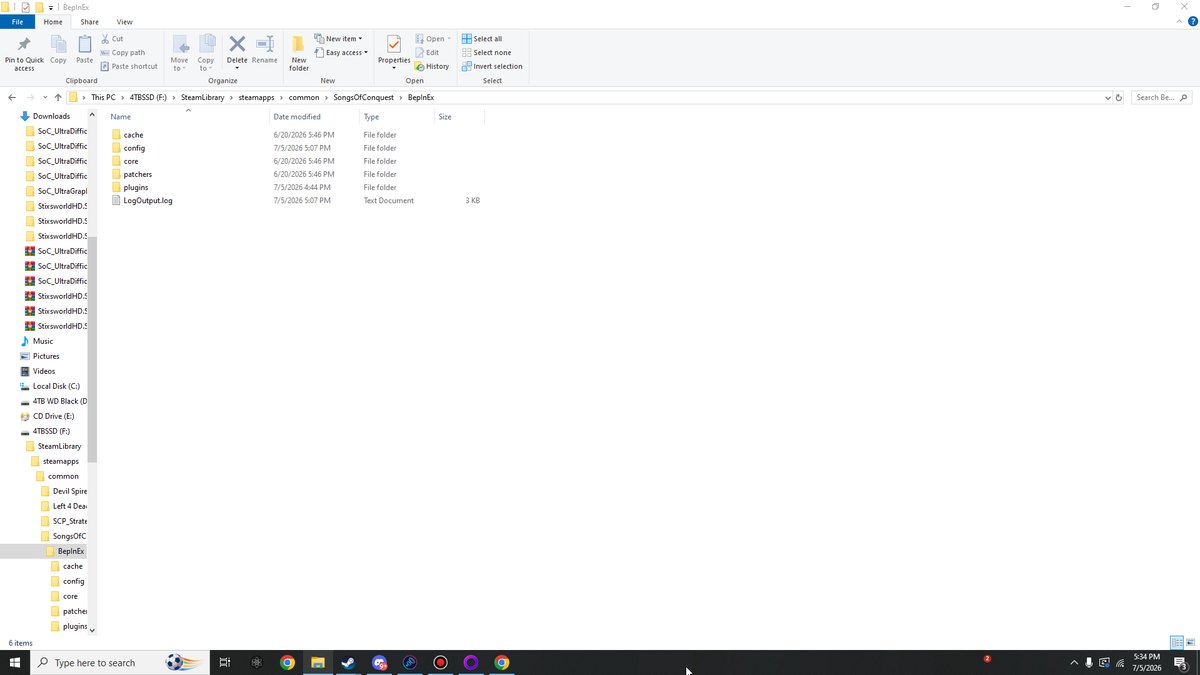
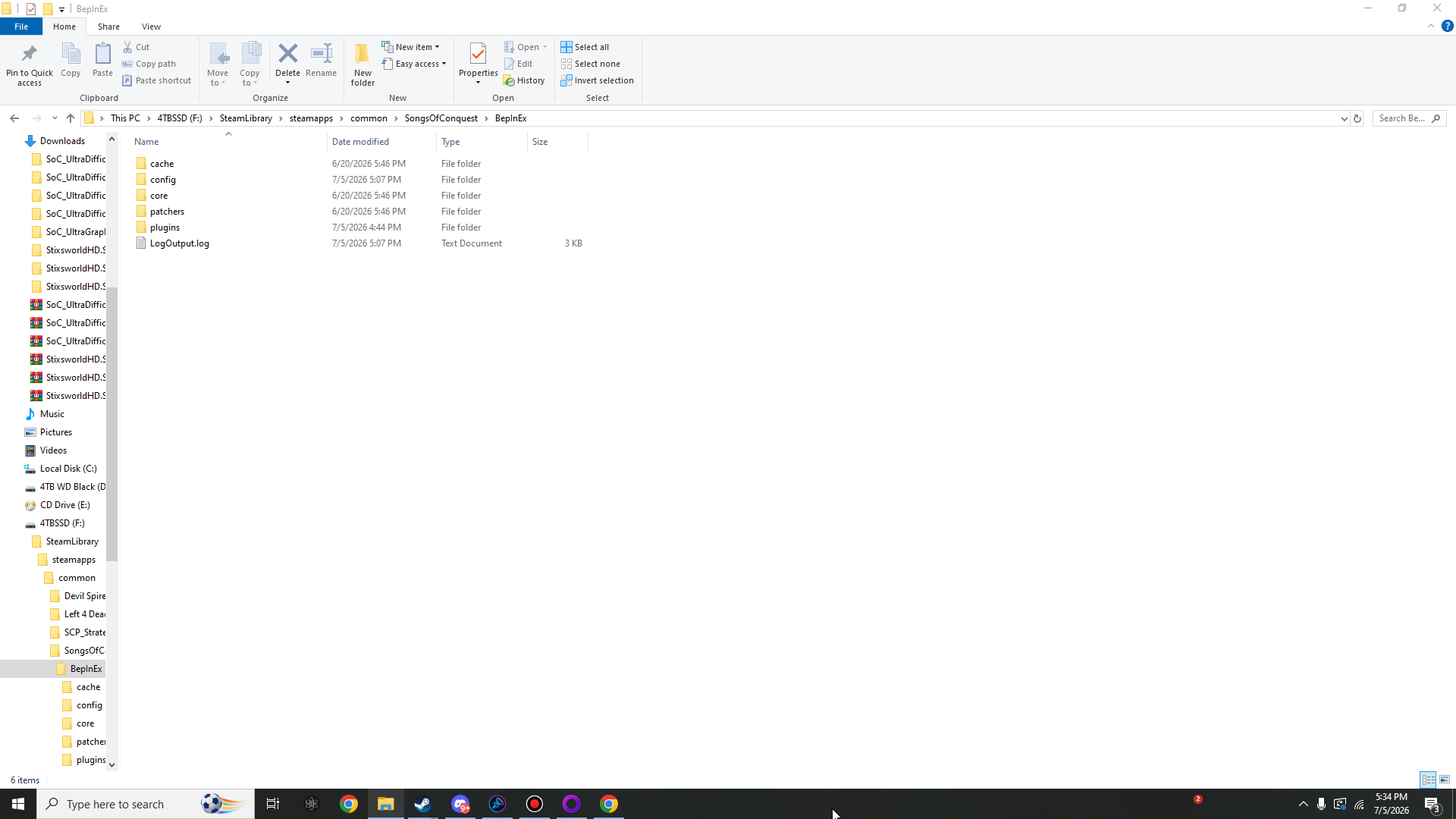
Checkpoint — inside BepInEx\after the first launch. Ifplugins\,config\andLogOutput.logexist, the loader is alive. -
Verify thirty seconds now saves an hour later
Open
BepInEx\LogOutput.login Notepad. A healthy first run starts like this:[Message: BepInEx] BepInEx 5.4.23.3 - SongsOfConquest (…) [Info : BepInEx] Running under Unity v2022.3.x [Message: BepInEx] Preloader started [Message: BepInEx] Preloader finished [Message: BepInEx] Chainloader ready [Message: BepInEx] Chainloader started [Info : BepInEx] 0 plugins to load ← correct for now — none installed yet [Message: BepInEx] Chainloader startup completeLogOutput.logexists and mentions BepInEx 5.4.x.BepInEx\plugins\andBepInEx\config\folders exist.- The game itself still launches and plays exactly as before.
Foundation completeBepInEx is installed and idling. It will now load any BepInEx 5 plugin you drop into
BepInEx\plugins— which is precisely what Parts II and III do.
No LogOutput.log after launching?
BepInEx never started. Work down this list — it's nearly always the first two:
- Wrong folder level —
winhttp.dllmust be in the same folder asSongsOfConquest.exe, not one level up or down (see the step 3 warning). - x86 build downloaded — re-download
BepInEx_win_x64_…zipand overwrite. - Windows blocked the DLLs — right-click
winhttp.dll→ Properties → Unblock. Some unzip tools preserve the block flag on every extracted file; re-extract with 7-Zip if needed. - Antivirus quarantine — check your AV history for
winhttp.dlland restore/whitelist the game folder. - Non-Steam/GOG builds — the Microsoft Store / Game Pass version packages the game differently and doorstop can't hook it. This guide (and both mods) target the Steam and GOG releases.
More cures live on the Troubleshooting page.
Removing BepInEx later
Delete winhttp.dll, doorstop_config.ini, .doorstop_version,
changelog.txt and the BepInEx folder from the game directory. That's the
whole uninstall — the game never knew it was there.